TRANSACTIONS
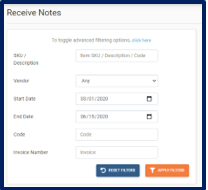
To Search and View Receive Notes
Click Transactions on the navigation bar.
From the drop-down menu select Receive Notes
 button and Receive Notes List page is displayed:
Search by item SKU, by item Description or by QEH Item Code
Search by Vendor
Select Date Range
Search by Goods Received Notes Code
Search by Invoice Number
Apply Filters button to search for items
Reset Filter button to remove all filters
Actions button to View Receive Note
Actions button to Create Credit Note (for selected receive note)
Export as PDF button to print Receive Note (if required)
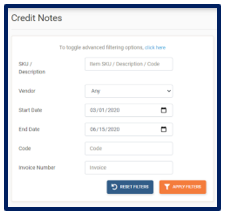
To Search and View Credit Notes
Click Transactions on the navigation bar.
From the drop-down menu select Credit Notes
 button and Credit Notes List page is displayed:
Search by item SKU, by item Description or by QEH Item Code
Search by Vendor
Select Date Range
Search by Credit Note Code
Search by Invoice Number
Apply Filters button to search for items
Reset Filter button to remove all filters
Actions button to View Credit Note
Export as PDF button to print Receive Note (if required)
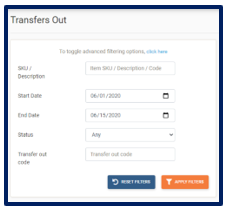
To Search and View Transfers Out
Click Transactions on the navigation bar.
From the drop-down menu select Transfers Out
 button and Transfers Out List page is displayed:
Search by item SKU, by item Description or QEH Item Code
Select Date Range
Search by Transfer Out Code
Apply Filters button to search for items
Reset Filter button to remove all filters
Actions button to View Transfer Out
To Search and View Transfers In
Click Transactions on the navigation bar.
From the drop-down menu select Transfers In
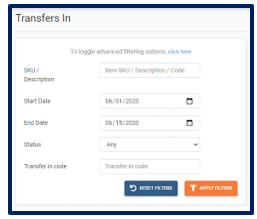
 button and Transfers In List page is displayed:
Search by item SKU, by item Description or by QEH Item Code
Select Date Range
Search by Transfer In Code
Apply Filters button to search for items
Reset Filter button to remove all filters
Actions button to View Transfer In
To Receive Transfers In
Click Transactions on the navigation bar.
From the drop-down menu select Transfers In
button and Receive Notes List page is displayed:Select View
 button
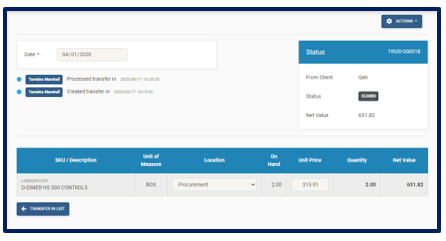
Select Date
Select Location where stock is going to be stored
Apply Defaults button
Process button
Update button to save changes.
Actions button to Export As PDF (if required)
Transfer List button to return to Transfer In main page
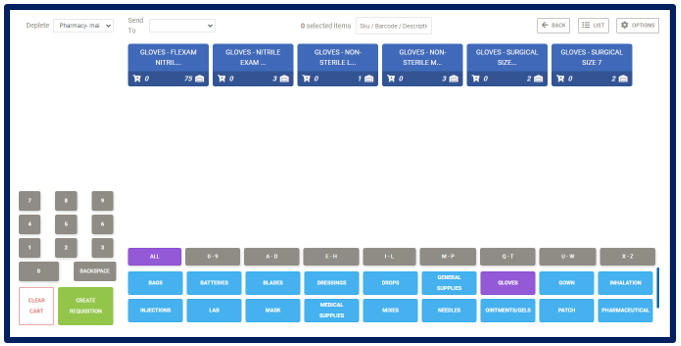
To Create Auto-Replenish Issues
Click Transactions on the navigation bar.
From the drop-down menu select POU Grid
 button and the POU Grid is displayed:
Search by Item Sub-Type, by item SKU or by QEH Item Code
Select Items
Remove Items
Apply quantities
Select “Send To” Location
Backspace button to remove quantity applied
Clear Cart button to empty the Issue cart
Create Issue button to process the Issue
Back button to return to the Issue Main Page
List button to return to the Issue Creation Page
Note: If item card is blue you have enough stock on hand. If item card is greyed-out this means the item has no stock on-hand. If item card is green you have zero on-hand, however, you have some on order. Also note you cannot Issue out more stock than what you have.